
If you have ever lost work because you accidentally pressed Ctrl+W or triggered an unwanted browser action mid-task, the Disable Browser Shortcuts extension for Chrome was built with you in mind. This lightweight utility gives you fast, one-click access to Chrome’s built-in shortcut manager, so you can take control of how the browser responds to your keystrokes without any complicated setup or technical knowledge required.
What Is Disable Browser Shortcuts?
Disable Browser Shortcuts is a focused Chrome extension that bridges the gap between you and Chrome’s native shortcut settings. Rather than modifying system-level keyboard behavior directly — which Chrome’s security policies restrict — the extension provides instant access to the chrome://extensions/shortcuts page, where you can review, reassign, or disable any shortcut that is getting in your way.
It is designed to be simple and purposeful. There are no unnecessary settings, no bloated dashboards, and no learning curve. Install it, click the icon, and you are immediately in control of your Chrome shortcut configuration.
Disable Browser Shortcuts
Key Features of Disable Browser Shortcuts
One-Click Access to Chrome’s Shortcut Manager
The extension places a dedicated button directly in your Chrome toolbar popup. Clicking it opens Chrome’s shortcut settings page instantly, saving you from digging through menus. This alone makes managing your keyboard shortcuts far less frustrating and more consistent in your daily workflow.
Clean, Distraction-Free Interface
The popup UI is intentionally minimal — a single, clear action button with no clutter. This focused design means you always know exactly what the extension does and how to use it. There is no setup wizard, no permission overreach, and no confusion about what the tool is for.
Lightweight Performance
Disable Browser Shortcuts uses virtually no system resources. It runs quietly in the background without slowing down page loads, consuming memory, or interfering with other extensions. Even on older machines or Chromebooks, performance remains completely unaffected.
Fully Compliant with Chrome Policies
The extension operates strictly within Chrome’s official extension guidelines. It does not inject scripts into pages, intercept keystrokes system-wide, or request sensitive permissions. You get the control you need while your browser remains secure and policy-compliant.
Works for All Skill Levels
Whether you are a developer who lives in the browser all day or a casual user who keeps accidentally closing tabs, this tool is equally useful. No technical knowledge is required — if you can click a button, you can use this extension effectively.
How to Install Disable Browser Shortcuts
- Open the Chrome Web Store and search for Disable Browser Shortcuts.
- Click the Add to Chrome button on the extension listing page.
- Confirm the installation by clicking Add Extension in the prompt that appears.
- Once installed, locate the extension icon in your Chrome toolbar. You may need to pin it via the Extensions menu.
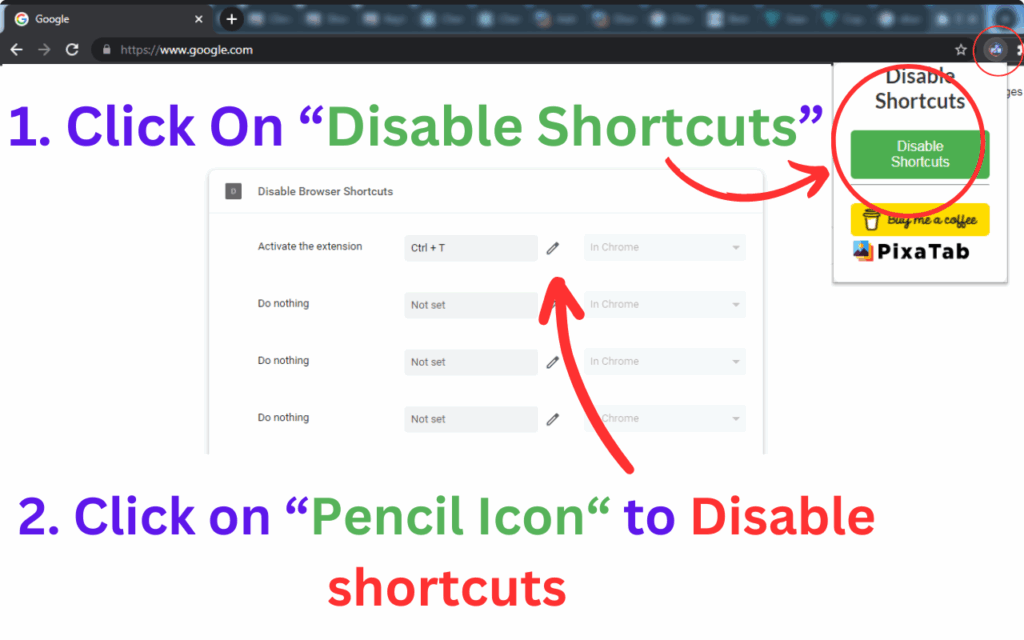
- Click the icon to open the popup, then click Manage Shortcuts to go directly to Chrome’s shortcut settings page.
- From there, disable or reassign any keyboard shortcut that has been causing problems.
Why Developers, Designers, and Everyday Users Love It
Accidental shortcut triggers are one of the most common yet overlooked sources of browser frustration. Developers frequently hit browser shortcuts while testing keyboard-heavy web apps. Designers lose canvas focus when Chrome interprets a keystroke as a navigation command. Gamers who play browser-based games find that shortcuts interrupt gameplay entirely.
Students and writers are not immune either — accidentally pressing Alt+Left Arrow can wipe out a form or essay draft in seconds. This extension gives all of these users a reliable way to take action and prevent those moments from happening again. It does not promise to do everything, but what it does, it does exceptionally well.
Screenshots
Frequently Asked Questions
Does this extension disable shortcuts automatically?
No. Due to Chrome’s security architecture, extensions cannot disable browser shortcuts directly. Disable Browser Shortcuts provides fast access to Chrome’s official shortcut management page, where you make the changes yourself. This keeps the process transparent and secure.
Will this extension slow down my browser?
Not at all. The extension has a minimal footprint and only activates when you click the toolbar icon. It does not run background scripts or consume memory while idle.
Which shortcuts can I disable through Chrome’s settings page?
Chrome allows you to disable or reassign shortcuts that are assigned to installed extensions. Native browser shortcuts like Ctrl+T or Ctrl+W have limited configurability within Chrome itself, but extension-specific shortcuts can be fully managed.
Is the extension safe to use?
Yes. It requests only the permissions necessary to function and fully complies with Chrome Web Store policies. It does not collect user data, track browsing activity, or communicate with external servers.
Who is this extension best suited for?
It is ideal for anyone who regularly works in Chrome and has been frustrated by accidental or conflicting keyboard shortcuts — including developers, remote workers, content creators, students, and gamers.
If unwanted keyboard shortcuts have been disrupting your workflow, Disable Browser Shortcuts offers a straightforward solution that requires no technical expertise. Add it to Chrome today and start customizing your shortcut settings in seconds.