

The Element Inspector Chrome extension is a fast, lightweight tool built for front-end developers and UI/UX designers who need instant access to CSS properties without opening DevTools every time. Simply hover over any element on a webpage and see its computed styles, class names, IDs, and layout boundaries in real time — no digging through panels, no wasted time.

What Is Element Inspector?
Element Inspector is a browser extension that lets you analyze and extract CSS styles from any webpage with a single hover. It was built specifically for developers, designers, and web debuggers who regularly inspect elements, debug layouts, or reverse-engineer third-party components. Unlike Chrome’s built-in DevTools, which require multiple clicks and panel navigation, Element Inspector puts computed CSS data directly in front of you — right as you move your cursor across the page.
It works across standard pages, embedded iframes, modals, popups, and dynamically loaded AJAX content, making it one of the most versatile CSS inspection tools available for Chrome.
Key Features of Element Inspector
Real-Time CSS Inspection on Hover
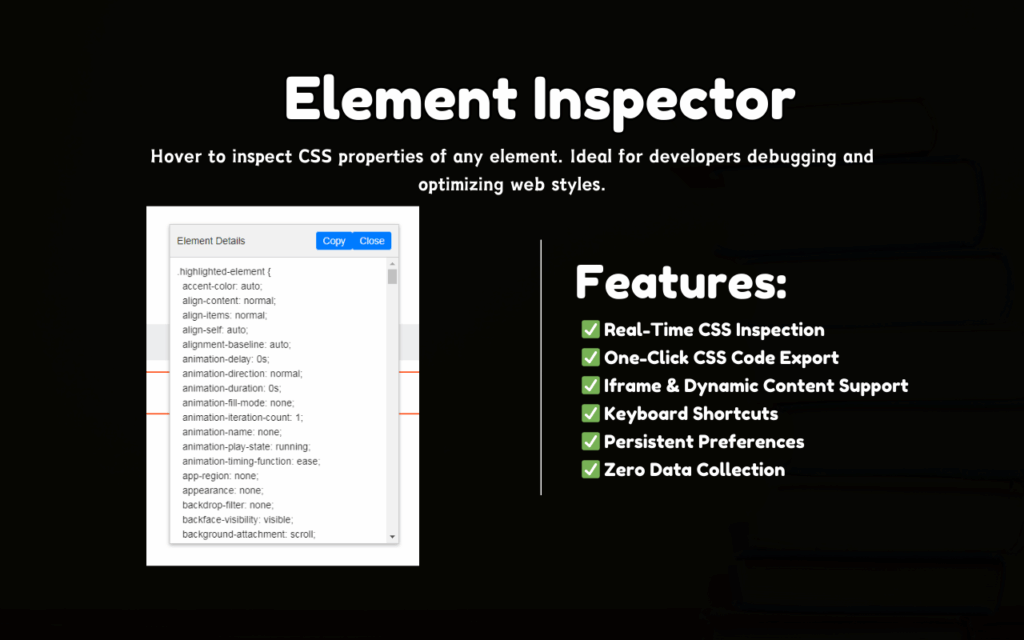
As you hover over any element, the extension immediately displays its computed CSS styles, ID, and class names alongside a visual boundary highlight. This removes the back-and-forth between the page and DevTools, letting you stay focused on the layout you’re analyzing.
One-Click CSS Export
Copy an element’s full CSS ruleset — including inherited properties — with a single click. The copied styles are ready to paste directly into your code editor, saving you from manually reconstructing rules or hunting through stylesheets.
Iframe and Dynamic Content Support
Element Inspector works seamlessly inside iframes, AJAX-loaded components, modals, and popups without requiring any extra configuration. This makes it reliable for inspecting complex, modern web applications that load content dynamically.
Customizable Keyboard Shortcut
Activate inspection mode instantly using the default shortcut Ctrl + Shift + S, which can be customized through Chrome’s extension settings. This lets you trigger the tool without leaving your keyboard or reaching for the mouse.
Persistent Preferences Across Sessions
Your activation state and settings are automatically saved between browser sessions. When you reopen Chrome, the extension remembers exactly how you left it — no reconfiguration needed.
Zero Data Collection and Local Processing
All CSS inspection and processing happens locally within your browser. No data is sent to external servers, and there is no tracking or telemetry of any kind, making it a privacy-safe tool for use on sensitive or client projects.
How to Install Element Inspector
- Open the Chrome Web Store and search for Element Inspector.
- Click the Add to Chrome button on the extension listing page.
- Confirm the installation when Chrome prompts you.
- Once installed, navigate to any website you want to inspect.
- Press Ctrl + Shift + S or click the extension icon in your toolbar to activate inspection mode.
- Hover over any element on the page to view its CSS properties and layout boundaries.
Why Developers and Designers Love Element Inspector
Front-end professionals choose Element Inspector because it fits naturally into their workflow without demanding a context switch. Instead of opening DevTools, clicking through the elements panel, and scrolling through a wall of styles, they get the data they need immediately — right at the cursor.
It’s particularly useful for debugging responsive layouts, where quick comparisons between elements matter. Designers use it to extract exact values from live sites during prototyping. Developers use it to understand how third-party frameworks like Bootstrap or Tailwind apply computed styles in production. Teams use it to share CSS rules quickly via clipboard, reducing back-and-forth communication during reviews.
Because it uses minimal memory compared to a full DevTools session, it’s also a practical choice when working with multiple tabs open or on machines with limited resources.
Screenshots
Frequently Asked Questions
Does Element Inspector work on all websites?
It works on the vast majority of websites, including those with iframes, modals, and AJAX-loaded content. Some browser-restricted pages, such as the Chrome Web Store itself or Chrome’s internal pages, may not support extension injection by default.
Can I copy CSS styles from inside an iframe?
Yes. Element Inspector is designed to work inside embedded iframes without any additional setup. Simply hover over elements within the iframe as you would on the main page.
Is my browsing data collected when using this extension?
No. All processing is handled locally within your browser. The extension does not connect to external servers, does not collect user data, and does not include any tracking or analytics.
Can I change the keyboard shortcut?
Yes. You can modify the default shortcut through Chrome’s built-in extension shortcut settings, found under chrome://extensions/shortcuts in your browser’s address bar.
Does it slow down my browser?
Element Inspector is designed to be lightweight. It activates only when you enable inspection mode, meaning it does not run continuously in the background or consume unnecessary memory when idle.
If you’re tired of navigating through DevTools just to grab a font size or check a padding value, Element Inspector is the practical, no-frills solution your workflow has been missing. Install it once and you’ll wonder how you managed without it.