What Is Fast Screenshot – One Click Capture?
Fast Screenshot – One Click Capture is a lightweight Chrome extension built for users who need a reliable one click screenshot extension without the bloat of complicated tools. Whether you are saving research, documenting bugs, archiving receipts, or sharing web content with colleagues, this extension delivers clean and accurate screenshots directly from your browser in seconds. No extra apps, no complicated setup — just fast, precise screen capture whenever you need it.
Designed for students, professionals, researchers, and everyday users, Fast Screenshot works seamlessly with your browser to capture visible page areas or full-page content in your preferred image format. It stays out of your way until you need it, making it one of the most efficient screenshot tools available for Chrome.
Key Features of Fast Screenshot
One-Click Toolbar Capture
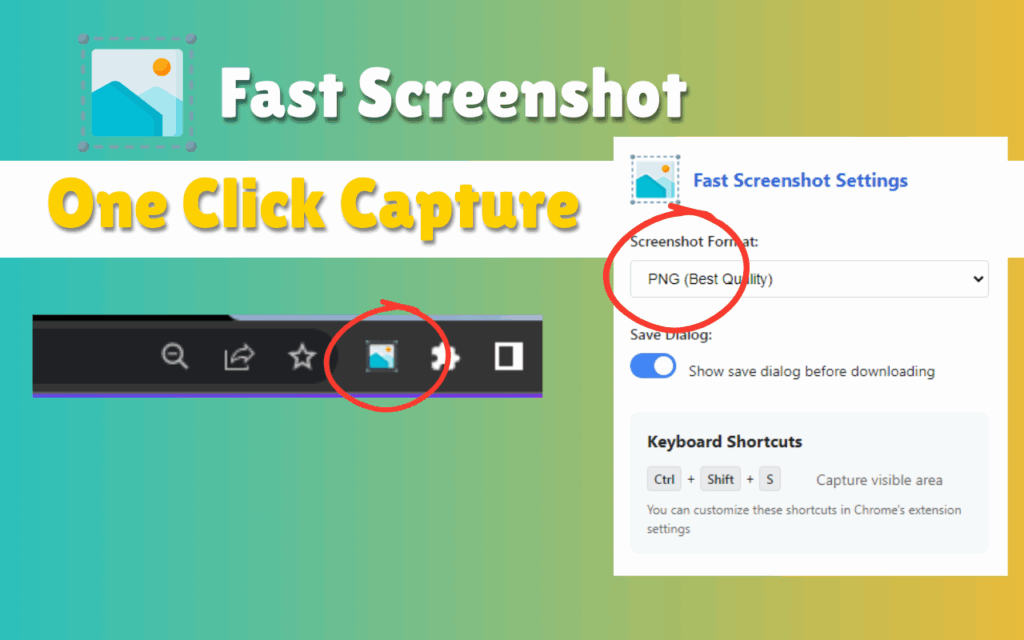
Simply click the extension icon in your Chrome toolbar to instantly capture a screenshot of the visible portion of the current page. The process is immediate — no pop-ups, no confirmation dialogs unless you want them. It is the fastest way to grab what is on your screen without interrupting your workflow.
Keyboard Shortcut Support
For users who prefer keeping their hands on the keyboard, Fast Screenshot supports Ctrl + Shift + S on Windows and Linux, and Cmd + Shift + S on Mac. This shortcut allows you to capture your screen without touching the mouse, making it ideal for power users and developers who value speed and efficiency.
PNG and JPEG Format Options
Choose between PNG for lossless, high-quality captures or JPEG for compressed, smaller file sizes with adjustable image quality. This flexibility lets you balance image clarity against file size depending on your use case, whether that is sharing a quick screenshot or archiving high-resolution documentation.
Flexible Save Options
Fast Screenshot gives you control over how your files are saved. You can enable the save dialog to choose the file name and location each time, or set the extension to auto-download screenshots directly to your default downloads folder. This makes batch saving quick and effortless.
Right-Click Context Menu Integration
Right-click anywhere on a webpage to access the Take Screenshot option from the context menu. This integration means you can trigger a capture from wherever your cursor already is, without navigating to the toolbar. It is a small feature that makes a meaningful difference during fast-paced browsing sessions.
Minimal Resource Usage
Fast Screenshot is engineered to be lightweight, consuming minimal CPU and memory while running in the background. Your browser performance stays smooth and responsive even with multiple tabs open, because this extension is optimized to do one thing well without dragging down system resources.
How to Install Fast Screenshot
- Open the Chrome Web Store and search for Fast Screenshot – One Click Capture.
- Click the Add to Chrome button on the extension listing page.
- Confirm the installation by clicking Add Extension in the dialog that appears.
- Once installed, the Fast Screenshot icon will appear in your Chrome toolbar.
- Click the icon or use the keyboard shortcut to take your first screenshot immediately.
Why Users Love This Extension
Fast Screenshot has earned a loyal user base because it respects your time. There is no learning curve, no account required, and no unnecessary permissions. Students use it to capture study material from online textbooks and articles. Developers rely on it to document UI bugs and share visual feedback with their teams. Professionals save invoices, email confirmations, and reports without printing or copying text manually.
Researchers appreciate the ability to archive web sources in a visual format that preserves layout and design context. Casual users simply enjoy having a tool that works the first time, every time — no frustration, no workarounds. The combination of keyboard shortcuts, format options, and context menu access gives every type of user a way to work that fits their personal style.
Screenshots
Frequently Asked Questions
Does Fast Screenshot capture the full page or just the visible area?
By default, the extension captures the visible portion of the webpage currently displayed in your browser window. Full-page capture options may depend on your extension settings. Check the settings panel after installation to configure your preferred capture mode.
What image formats does Fast Screenshot support?
The extension supports both PNG and JPEG formats. PNG provides lossless quality and is ideal for detailed screenshots, while JPEG offers smaller file sizes with adjustable compression levels for easier sharing.
Can I use Fast Screenshot without clicking the toolbar icon?
Yes. The extension supports a keyboard shortcut — Ctrl + Shift + S on Windows and Linux, or Cmd + Shift + S on Mac — so you can trigger captures entirely without using your mouse. You can also use the right-click context menu on any webpage.
Does the extension require an account or internet connection to work?
No account or login is required. Fast Screenshot works locally within your browser and does not need an active internet connection to capture and save screenshots. Your files are saved directly to your device.
Is Fast Screenshot free to use?
Yes, Fast Screenshot – One Click Capture is completely free. There are no premium tiers, hidden charges, or subscription fees. Install it once and use it as often as you need at no cost.
If you are tired of slow, overcomplicated screenshot tools and want something that simply works, Fast Screenshot – One Click Capture is the Chrome extension worth adding to your browser today. Give it a try and experience how much faster your workflow can be.