What Is YouTube Feed Blocker?
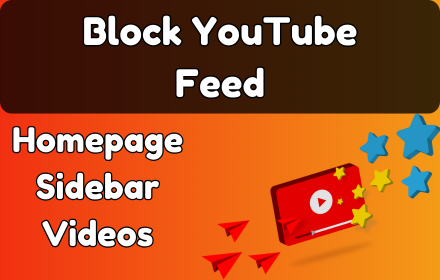
YouTube Feed Blocker is a free Chrome extension designed to help you use YouTube without getting pulled into endless recommended videos. If you have ever opened YouTube to watch a single tutorial and found yourself still scrolling an hour later, this YouTube feed blocker Chrome extension was built for you. It removes the algorithmic content that keeps you watching longer than you intended, giving you a cleaner, more intentional experience on the platform.
Unlike browser-wide content blockers, YouTube Feed Blocker works exclusively on YouTube and targets only the elements responsible for distraction — the homepage feed, sidebar suggestions, and end screen recommendations. Everything else stays intact so you can still search, subscribe, and watch the videos you actually came for.
Key Features of YouTube Feed Blocker
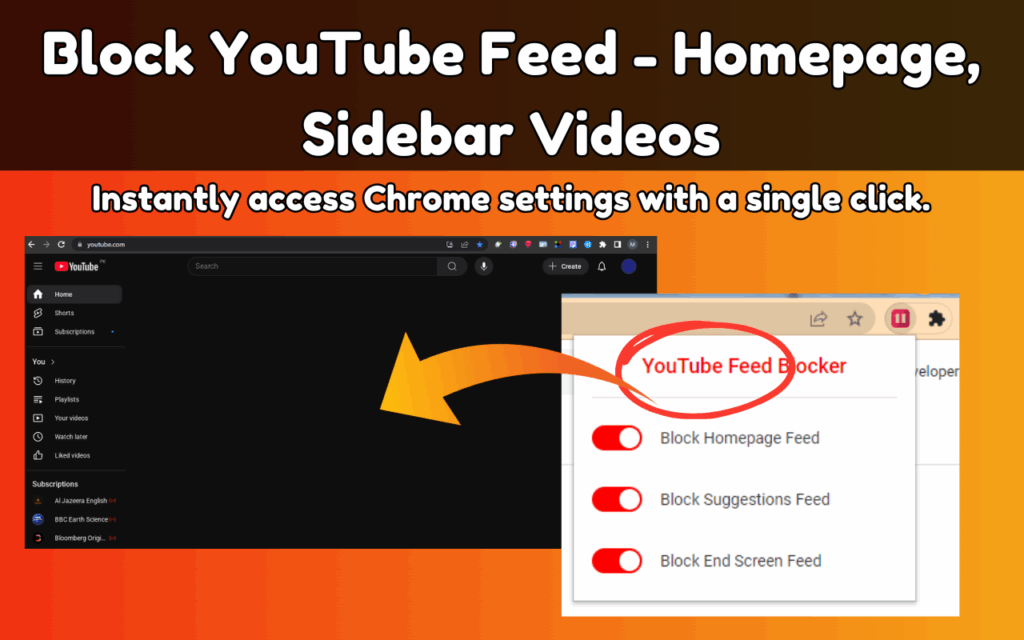
Block the Homepage Feed
When you open YouTube, the homepage is packed with algorithmically chosen thumbnails designed to grab your attention before you even search for anything. YouTube Feed Blocker removes this feed entirely, replacing it with a clean, empty page. This one change alone can dramatically reduce the amount of time you spend on the site without meaning to.
Hide Sidebar Suggestions
The sidebar that appears next to every video you watch is filled with autoplay-ready suggestions chosen to keep you on the platform. This extension hides that panel completely so your focus stays on the video you chose. Once the video ends, you decide what comes next — not the algorithm.
Block End Screen Recommendations
End screens are one of YouTube’s most effective retention tools, displaying a carousel of videos the moment your current one finishes. YouTube Feed Blocker disables this feature so you are not automatically nudged into another video. You stay in control of when a session ends and when it continues.
Fully Toggleable Controls
Not everyone wants to block every feature at once. The extension lets you enable or disable each blocking option independently with a single click from the toolbar icon. You can block just the homepage feed, just the sidebar, or all three — depending on what works best for your situation.
Lightweight and Private
YouTube Feed Blocker runs quietly in the background without slowing down your browser or YouTube itself. It collects zero user data, requires no account, and works completely offline — making it one of the most privacy-respecting productivity tools available for Chrome.
How to Install YouTube Feed Blocker
- Open the Chrome Web Store and search for YouTube Feed Blocker.
- Click the Add to Chrome button on the extension listing page.
- Confirm by clicking Add Extension in the popup dialog.
- Once installed, the extension icon will appear in your Chrome toolbar.
- Click the icon to open the control panel and toggle the features you want to activate.
Why Students and Professionals Love It
YouTube is an incredible resource for learning, tutorials, and research — but the same design that makes it engaging also makes it hard to use with intention. Students using YouTube to study often find themselves sidetracked by unrelated content within minutes. Professionals watching a quick how-to video can lose thirty minutes to suggested content before they realize it. YouTube Feed Blocker solves this by removing the parts of the interface that exist to extend your session beyond what you planned.
Users consistently report that after installing the extension, they spend less time on YouTube overall while actually getting more value from the time they do spend there. The tool is especially popular among people following productivity systems, digital minimalists, and anyone trying to build healthier screen habits without giving up YouTube entirely.
Screenshots
Frequently Asked Questions
Does YouTube Feed Blocker affect video playback or search?
No. The extension only hides recommendation-based UI elements. Your ability to search for videos, access your subscriptions, manage your account, and play videos is completely unaffected.
Can I choose which features to block?
Yes. Each blocking feature — the homepage feed, sidebar suggestions, and end screen recommendations — can be turned on or off independently using the extension’s popup panel. You are not required to block everything at once.
Does the extension track my browsing activity?
Absolutely not. YouTube Feed Blocker does not collect, store, or transmit any user data. It operates entirely within your browser with no external communication.
Is the extension free to use?
Yes, YouTube Feed Blocker is completely free. There are no premium tiers, subscription fees, or in-app purchases of any kind.
Will it work if I am not connected to the internet?
The extension’s blocking logic runs locally in your browser, so it does not require an active internet connection to function. It will continue working normally on slow or offline networks.
If you are serious about using YouTube on your own terms, YouTube Feed Blocker is one of the simplest and most effective tools you can add to Chrome today. Search for it in the Chrome Web Store and take back your time.